How to view a Manifest List report
Overview
The Manifest List report provides an exportable, structured snapshot of all manifests that meet your selected criteria, giving you clear visibility over manifest activity. From the Manifests page, you can filter by key attributes such as status, status date, destination warehouse, company, manifest ID, etc. Then you can download the resulting table in CSV or XLSX format for operational, auditing, or customs‑related workflows. This report enables your team to quickly analyse shipping readiness, delivery progress, capacity utilisation, and any blockers in the end‑to‑end manifesting process by consolidating essential operational data into a single, exportable format.
How to view a Manifest List report
- Log in to Returns Management System (RMS).
- On the sidebar menu, click Manifests. The Manifests page appears on the right.
- On the Manifests page, you can filter to view manifests based on the following criteria:
- Status - from the dropdown menu, select the status of the manifests you want to view
- Status Date - from the dropdown selector, select the status date of the manifest
- Destination Warehouse - from the dropdown menu, select the destination warehouse for the manifests you want to view
- Company - from the dropdown menu, select the company whose manifests you want to view
- Grade - from the dropdown menu, select the grades of the products in the manifests you want to view
- Date Opened - from the dropdown selector, select the date the manifest is opened
- Date Closed - from the dropdown selector, select the date the manifest is closed
- Manifest ID - fill in the manifest ID of the manifest you want to view
- Manifest Reference Number - fill in the manifest reference number of the manifest you want to view
- Master Manifest ID - fill in the master manifest ID for the manifests you want to view
- Parcel Tracking ID - fill in the parcel tracking ID of the parcels in the manifest you want to view
- Carrier Tracking ID - fill in the carrier tracking ID of the carrier that is responsible for delivering the manifests you want to view
- Carriage Reference - fill in the carriage reference of the manifest/s you want to view
- After you apply the filters you want, you are able to view a manifest list table with the relevant manifest information organized in the following columns:
- Company
- Manifest ID
- Manifest Reference Number
- Master Manifest ID
- Warehouse Position
- Status
- Destination Warehouse
- Carrier Service
- Carrier Tracking ID
- Total Items
- Maximum Weight
- Net Weight in kilograms
- Available Weight
- Grade
- Time remaining
- Carrier Transport ID
- Date Opened
- Date Closed
- Status Date
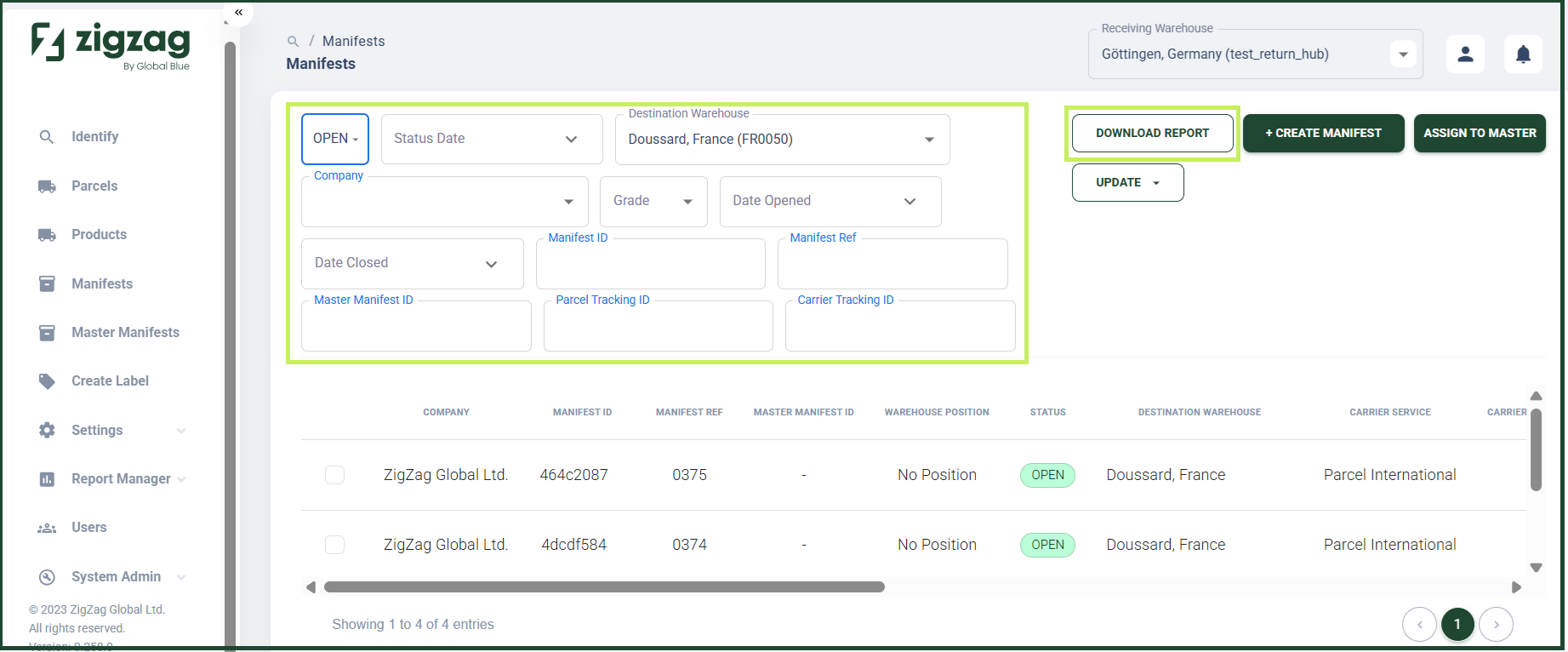
- You are able to download the table in CSV or XLS format by clicking on the Download report button. A Download report dialog window appears.
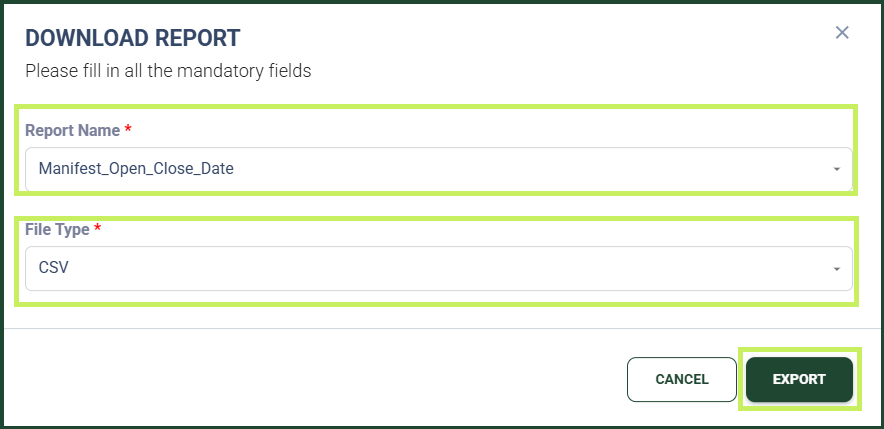
- In the Download report dialog window, fill in:
- Report name - from the drop-down menu, select the name for the report you want to download; you can also write a new report name
- File type - from the drop-down menu, select the file type (CSV or XLS) for the report your want to download
- Click Export.